Creating a Starter React Project
There are several ways to create a combined project with React and Flask. I prefer to start from the frontend because the project structure is much more complex than the backend. For this example I used the create-react-app generator to create a simple React project to start from:
        $ npx create-react-app react-flask-app
        $ cd react-flask-app
If you get any errors, contact your instructor or the TA
The npx command comes with Node.js. It is a simple
project runner that downloads the requested command if it isn't
already available and in the system's PATH. The first
argument is the command to execute. The second argument is the
name of the project to create. When this command completes, you
will have a react-flask-app directory with a complete and
fully functional simple react project.
Since you will work on this project from now on, you
can cd into react-flask-app so that it
is your current directory. If you list the directory you should
see the top-level structure, which should be more or less like
this:
        $ ls -l
        total 912
        -rw-r--r--     1 mgrinberg  staff    2884 Feb 10 14:54 README.md
        drwxr-xr-x  1027 mgrinberg  staff   32864 Feb 10 15:03 node_modules
        -rw-r--r--     1 mgrinberg  staff     890 Feb 10 15:04 package.json
        drwxr-xr-x     8 mgrinberg  staff     256 Feb 10 14:54 public
        drwxr-xr-x    10 mgrinberg  staff     320 Feb 10 23:50 src
        -rw-r--r--     1 mgrinberg  staff  454962 Feb 10 14:54 yarn.lock
Creating a Flask API Backend
The next step is to create the Flask project. Since I want to have both the frontend and backend combined into a single project, my preference here is to add one more top-level subdirectory where the Flask project will live:
        $ mkdir api
        $ cd api
I always create a virtual environment called venv in my project directory, so let's do that now:
        $ python3 -m venv venv
        $ source venv/bin/activate
For this simple example I need only two Python packages, the obvious Flask and also python-dotenv:
(venv) $ pip install flask python-dotenv
The Flask project can have any structure that you like, as long as its root is this new api subdirectory. In particular, you can use large and complex structures such as those in my Flask Mega-Tutorial or O'Reilly Flask book, as well as much simpler single file applications. In the spirit of keeping things simple, for this example I'm going to create a small, single file and single endpoint application. Here is my Flask API project, written as a single file called api.py:
        import time
        from flask import Flask

        app = Flask(__name__)

        @app.route('/time')
        def get_current_time():
               return {'time': time.time()}
This little API responds to the /time URL with a
JSON payload such as this:
{"time": 1581527730.5866282}
As you probably know, Flask imports the application from the
place indicated by the FLASK_APP environment
variable. To avoid having to manually set this variable every
time, I'm going to write a .flaskenv file, which Flask
automatically imports into the environment on startup if it finds
the python-dotenv package installed. Here is my .flaskenv
file:
        FLASK_APP=api.py
        FLASK_ENV=development
Since I'm going to be setting up development environment, I
also added the FLASK_ENV variable, with a setting
of development, which enables Flask's debug mode.
At this point this basic Flask project is complete. To make sure that it is working well you can start it:
        (venv) $ flask run
        * Serving Flask app "api.py" (lazy loading)
        * Environment: development
        * Debug mode: on
        * Running on http://127.0.0.1:5000/ (Press CTRL+C to quit)
        * Restarting with stat
        * Debugger is active!
        * Debugger PIN: 673-234-166
To stop the Flask server
press Ctrl-C. This is very important! Stop your
flask server here.
Now that the Flask part of this project is complete, let's leave the api subdirectory and go back to the root of the combined project.
(venv) $ cd ..
React Configuration Changes
The React project created by the create-react-app
utility left a package.json file with the project's
configuration. There are a couple of changes to make in this file
to improve the integration between the React and the Flask
sides.
The first change is to set up "proxy" redirection from React to
Flask. You will see in a moment that the React project will run a
web server on port 3000, while Flask runs its own server on port
5000. In most deployments, however, the frontend files and the API
endpoints are all served from the same domain and port, which
makes everything work seamlessly by avoiding cross-origin
issues. The React project can be configured to redirect any
requests it receives on its port 3000 that it does not understand
into another server. This is configured simply by adding
a proxy key at the bottom package.json:
{

        ... leave all other configuration options alone ...

        "proxy": "http://127.0.0.1:5000"
        }
When you do this, do not forget to add a comma at the end of the previous line, as without that comma the file would not be a valid JSON file.
The other change I like to make is related to management
commands. The React application uses npm as a
command manager. For example, the frontend server is started with
the npm start command. There is also a npm
test and a few more commands.
While this is entirely optional, the commands to manage the
Flask app can be integrated with yarn as well. Somewhere in the
middle of package.json you will find
a scripts key. You can add any custom commands inside
it:
  "scripts": {
        "start": "react-scripts start",
        "start-api": "cd api && venv/bin/flask run --no-debugger",
        "build": "react-scripts build",
        "test": "react-scripts test",
        "eject": "react-scripts eject"
        },
Here I've added one new entry called start-api,
which I'm going to use to run the Flask server. The value of this
key is the command that needs to be executed, which in this case
involves changing into the api subdirectory and then
running the flask run command.
Note that I have used the virtual environment path for
the flask command so that I don't need to have the
virtual environment activated. The nice thing about running the
command in this way is that in the context of the Flask process
all imports will work in the same way as with an activated virtual
environment.
The --no-debugger option that I added in the command
also deserves a mention. Since this Flask backend is strictly an
API server, we will never be serving complete pages, so having the
browser-based debugger enabled serves no purpose, as it's just
going to mess up the JSON responses that the API returns. You will
see stack traces of your errors in the terminal.
Running the Combined Project
Okay, now the most exciting part. Let's run the application!
To do this you will need to use two terminal windows. One for the frontend server, and another for the backend. On the first terminal, start the frontend:
$ npm start
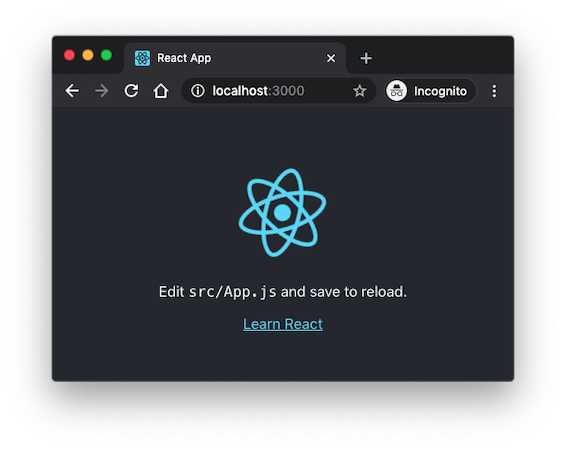
This will take a few seconds and then a browser window will open with the example application from React loaded from http://localhost:3000:
When you have the frontend running, switch to your second terminal and start the Flask backend at http://localhost:5000:
$ npm run start-api
Now both the frontend and backend are running. The frontend will redirect any requests it does not recognize to the backend. Both are watching their source code files and will restart when changes are made. I find this setup very convenient, because now I can just concentrate on writing code and the two servers refresh automatically as the code changes.
Invoking a Flask Endpoint from React
To complete this project, I'm going to expand the React application with a call to the /time endpoint that I defined in the Flask side. The main source file for the React application is src/App.js. This is this file after I put my changes:
        import React, { useState, useEffect } from 'react';
        import logo from './logo.svg';
        import './App.css';

        function App() {
             const [currentTime, setCurrentTime] = useState(0);

             useEffect(() => {
             fetch('/time').then(res => res.json()).then(data => {
                  setCurrentTime(data.time);
             });
        }, []);

        return (
             <div className="App">
             <header className="App-header">

             ... no changes in this part ...

             <p>The current time is
               {new Date(currentTime * 1000).toLocaleString()}.</p>
             </header>
             </div>
        );
        }

        export default App;
As soon as you save the src/App.js file with the above changes, the application should update and show the current Unix time:
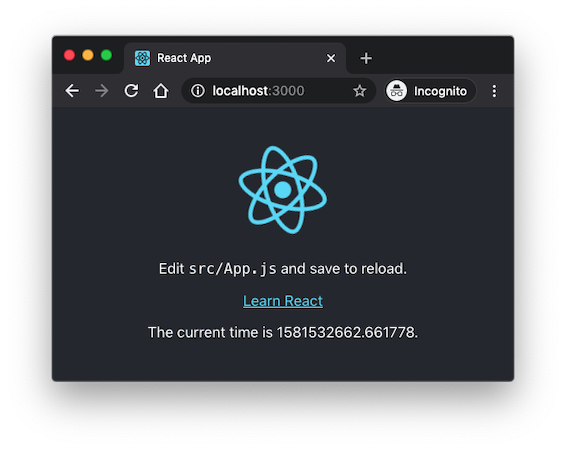
There are a few small changes here. In the first line I added
two new imports, useState
and useEffect. I'm going to use the former to add the
current time as state within the React application. The latter is
used to create a callback that will be invoked when the
application renders to the page, which is the time the Flask
endpoint needs to be invoked.
In case you are used to writing React applications using classes and components, you should note that you can still do that, but the currently recommended practice is to use a function based approach. JavaScript projects tend to change often, sometimes in drastic ways. You should keep in mind that this isn't the only way to write a React application.
To add state to the application you use
the useState()
function:
const [currentTime, setCurrentTime] = useState(0);
The function returns two values, a getter and a setter for the
new state. The getter is a simple variable, while the setter is a
function. Using a setter function is necessary because by invoking
the setter React is able to trigger updates in the parts of the
application that depend on this state. The 0 that I'm
passing as an argument to useState() is the initial
value for this state variable.
Now that the state variable exists, it can be added to the template portion of the application:
	<p>The current time is
               {new Date(currentTime * 1000).toLocaleString()}.</p>
This can be added anywhere in the template, and in fact, if you prefer you can erase the content used by the default React application and replace it with this.
The final part of this example application is to issue a request from the frontend to the backend:
        useEffect(() => {
              fetch('/time').then(res => res.json()).then(data => {
                   setCurrentTime(data.time);
              });
        }, []);
This needs to happen at a specific time when the React
application is about to be displayed on the
page. The useEffect() function is used to set up a
callback function to be invoked when the application needs to
prepare itself to render.
The first argument is the callback function. In this function I
used fetch() to send the request over to the Flask
API. Because of the proxy configuration I don't have to use the
port 5000 URL, I can just use /time, which will make
the request go to http://localhost:3000/time, before
it gets redirected to port 5000. If you decide to not use the
proxy feature and send the requests directly to port 5000, you
will also need to configure CORS in the Flask server to allow
this, since now you will be issuing the request across different
origins.
The fetch() function returns
a promise,
so I set up a completion callback with the then()
method. This callback receives the response as res,
and then calls the res.json() method to convert the
payload to a JavaScript object. This is yet another promise, so I
have to chain a second then() with one more callback
function. This final callback receives the JSON data from the
request, which is an object with a single time
attribute. Here I can use the setCurrentTime() setter
function to update the currentTime state, which is
referenced in the template, so as soon as the state changes the
new value will be rendered.
The second argument to useEffect() is optional and
can be set to the list of state variables on which this callback
depends. In this case I wanted to display the time when the page
appears initially and then stay fixed to that, so I'm sending an
empty list to eliminate all dependencies. This means that this
callback will be invoked on initial rendering and never again. If
this argument isn't set, the default is to make this callback
dependent on all state variables. This means that when
the setCurrentTime() setter is called there will be
another call into this function, which will cause the state to
change again and keep causing recursive invocations in an endless
loop.
Conclusion
So that's it, now you know how to create a project that combines React with Flask. As I hinted earlier, this isn't the only way to combine these two frameworks, so I encourage you to experiment with them and find what works best for you.